The Hidden Struggle Behind Perfect AI Generation
Let's be honest. You typed "realistic person drinking coffee" into your favorite AI tool, and it spat out a mutant with seven fingers holding a melting cup. We have all been there. You try fixing it by adding more words like "beautiful" or "perfect," but the image just gets weirder. The secret to fixing this mess isn't telling the AI what to add. It is telling it exactly what to ignore. In this guide, I will show you how to use "negative restrictions" to force AI tools to give you exactly what you want, every single time.
🎯 Quick Takeaways Before You Read:
- Stop typing long paragraphs; telling AI what to avoid (negative prompting) fixes broken outputs much faster.
- Use highly specific, technical words (like "asymmetrical" or "CGI") instead of emotional ones (like "ugly").
- Save your favorite restrictions in a notepad template to speed up your daily workflow.
- Keep your negative lists short. 5 to 7 specific words will always beat a messy list of 50 random words.
Mastering the Art of Telling AI What to Avoid
To solve this daily frustration, we need to completely change how we talk to artificial intelligence. Imagine you are ordering a pizza from a restaurant. If you just say "make it delicious," the chef might add pineapples, mushrooms, and olives.
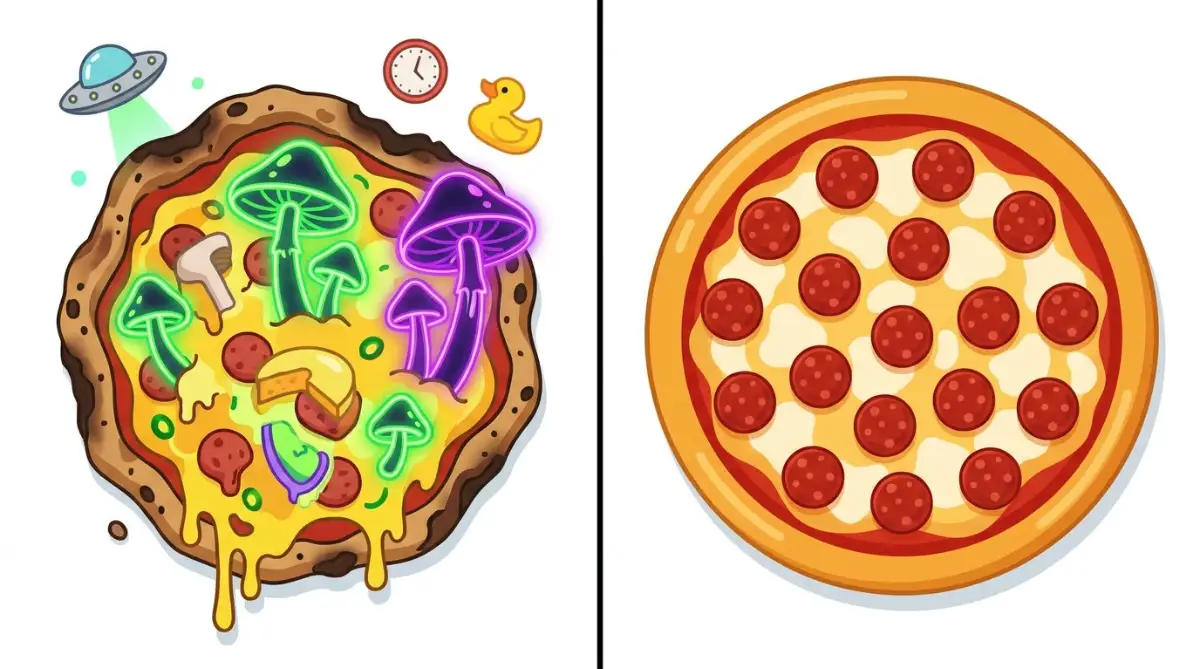
If you hate mushrooms, the smartest thing to do is simply say "no mushrooms." This exact same logic applies perfectly to software and AI tools. By telling the system exactly what to leave out, you instantly clean up your final results.
Identifying the Unwanted Elements First
Before you even start typing your main request, take a moment to think about the worst-case scenario. What could possibly go wrong with your request? If you are generating a professional business article, the AI might make it sound too robotic or cheesy.
If you are generating a graphic, the AI might add weird watermarks, blurry edges, or unnatural lighting. You must create a mental list of these specific bad elements. Write them down on a piece of paper if it helps you organize your thoughts better.
By identifying these common errors early, you can build a strong protective wall around your prompt. You are essentially setting strict boundaries that the artificial intelligence is not allowed to cross.
Structuring Your Restrictive Commands
The way you structure your negative instructions is incredibly important for success. You cannot just write a messy paragraph and hope the machine understands your intent. You need to use clean, separated keywords that clearly highlight the exact things you want to remove.
For visual tools, you will often find a specific text box dedicated entirely to things you want to avoid. In this box, you should list your unwanted elements separated by commas. For example, you might type "ugly, blurry, poorly drawn, extra limbs, watermark."
To make things easier for you, I put together a quick cheat sheet. You can copy and paste these exact negative words based on what you are trying to create:
Do you want to see exactly how professionals set this up for massive success? Watch this incredibly helpful video below to discover the hidden techniques of filtering out bad AI outputs.
Applying Constraints to Text Generators
Using restrictive commands is not just for making pretty pictures. It works wonders for text-based chat tools as well. When asking a tool to write an email or an essay, you should always include a section explaining what to avoid.
You can literally tell the tool, "Do not use overly complex words, avoid starting sentences with 'however', and never use corporate jargon." This instantly forces the machine to write more like a normal, everyday human being.
It acts like an invisible filter that cleans up the grammar and tone before you even read it. You will spend far less time editing and rewriting the content yourself.
I used to spend hours rewriting robotic AI emails because they sounded completely fake. My biggest realization was that simply adding "Do not be overly enthusiastic or formal" to my prompt saved me more time than any other trick I had ever tried.
The Science of Weighting and Emphasis
Sometimes, simply naming an unwanted element is not enough to get rid of it completely. The system might still sneak a tiny bit of that bad element into your final result. This is where the scientific concept of "weighting" comes into play.
You can force the machine to pay extra attention to certain words by putting brackets around them or adding specific numbers. For instance, if a tool keeps giving you cartoon-style images, you can emphasize your restriction by typing "(cartoonish:1.5)".
This tells the software that avoiding the cartoon style is your highest priority. It is a very technical but highly practical trick that professional creators use every single day.
Real-Life Scenario: The Professional Portrait
Let us look at a highly practical, real-life scenario to understand this better. Imagine you need a clean, professional headshot for your LinkedIn profile. Your initial request might be "a professional photo of a man in a suit."
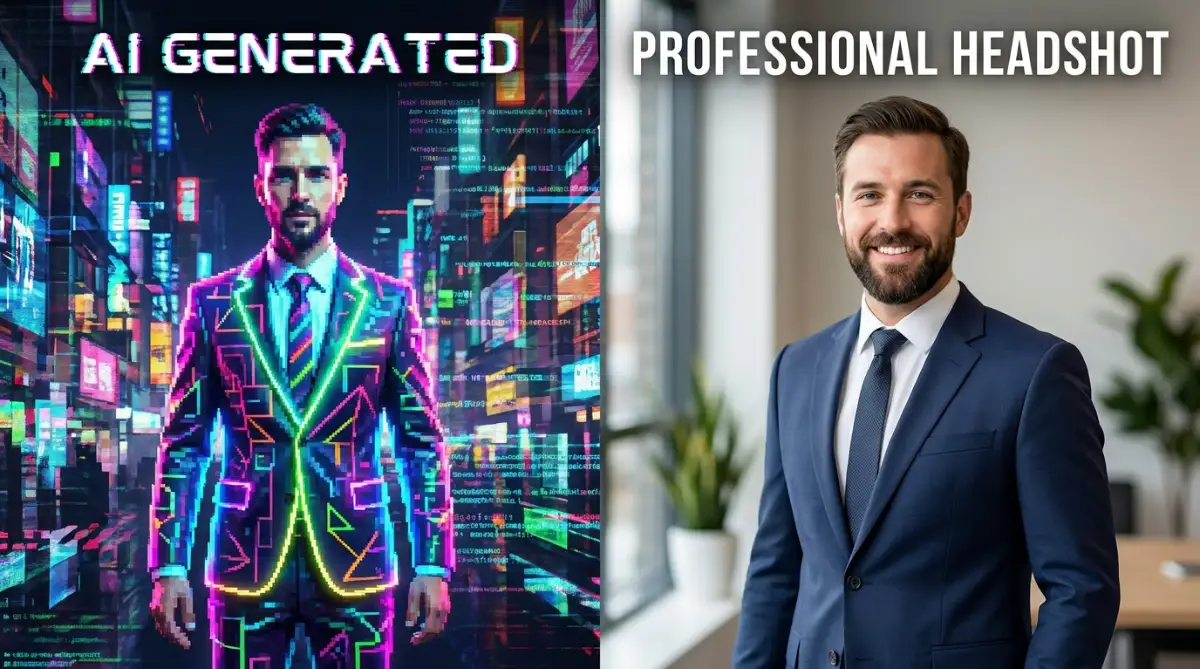
Without any restrictions, the system might give you a photo with weird studio lighting, a distracting neon background, and plastic-looking skin. To fix this, you must apply your restrictive commands strategically.
You would tell the system to actively avoid "neon lights, plastic skin, heavy makeup, messy background, illustration style." Instantly, the output shifts from a messy digital painting to a highly realistic, professional photograph.
Myth vs Reality in Prompting
There are many misconceptions about how to properly guide artificial intelligence. Let us clear up some of the most common misunderstandings right now.
As you can clearly see from the table above, simplicity and restriction often beat complexity. You do not need a computer science degree to get amazing results. You just need to be very clear about your boundaries.
Refining the Tone for Content Creators
If you run a blog or create social media posts, tone is everything. You want your audience to feel like they are connecting with a real person. Unfortunately, AI naturally defaults to a very preachy, robotic tone that pushes readers away.
To fix this, your negative instructions must focus heavily on personality traits you dislike. Tell the software to avoid being "robotic, preachy, overly dramatic, or academic."
Demand that it avoids using long, winding sentences that put people to sleep. When you remove these bad communication habits, the true value of your message finally shines through brightly.
Building Your Own Reusable Templates
You should never have to type out these long lists of restrictions every single time you start a new project. That is a terrible waste of your valuable time. Instead, you should build a personal library of reusable templates.
Open a simple notepad file on your computer or phone. Create one list of restrictions for realistic photos, another for digital art, and a completely different list for blog writing.
Whenever you need to generate something, just copy and paste your pre-made list into the software. This single habit will save you hundreds of hours over the next few months.
Understanding System Limitations
Even with the best instructions in the world, these tools are not perfect. Sometimes they will still make a mistake, and that is completely normal. You must learn to accept that artificial intelligence is simply a helpful assistant, not a flawless magic wand.
If a specific output is still coming out wrong, try removing a few words from your restriction list instead of adding more. Sometimes, giving the machine too many rules causes it to freeze up and produce weird errors.
Finding the perfect balance takes a little bit of patience and practice. You are essentially learning a brand new language to communicate with software.
The Financial Benefits of Efficiency
Think about the actual money you save when you get things right the first time. Many of these modern tools charge you credits or tokens for every single generation attempt. If you make ten mistakes, you are literally throwing your hard-earned money down the drain.
By mastering the art of what not to say, you become highly efficient. You can get the perfect graphic or the perfect article on the very first or second try.
This efficiency directly protects your wallet and lowers your business expenses. It also allows you to take on more projects because you are finishing your work in half the usual time.
Troubleshooting Common Failures
What should you do when your negative words completely fail? Do not panic. Just look at this quick troubleshooting table to find your exact problem and fix it right away:
Expanding Your Vocabulary for Better Control
To truly master this skill, you need to learn the specific words that trigger certain styles. If you want a photo to look real, you need to know the words that describe fake photos. Words like "CGI, render, 3D, octane, unreal engine" are highly effective when used as restrictions.
If you want a raw, unedited look, you should tell the software to avoid "retouched, airbrushed, studio lighting, highly polished."
By learning these descriptive industry terms, you gain ultimate control over the final product. You stop being a passive user and become a true director of the software. If you do not believe me, just take a look at the OpenAI Prompt Engineering Guide. Even the creators of these smart machines openly state that you have to give the system clear, strict boundaries if you want top-tier results.
How to Practice Effectively Today
The best way to get good at this is to deliberately practice right now. Open your favorite generation tool and intentionally try to make a really bad output first. Ask it for something completely basic.
Once you see the bad result, challenge yourself to fix it using only restrictive commands. Do not change your original positive request at all. Just keep adding things to avoid until the result becomes perfect.
This little exercise will train your brain to spot errors quickly. It builds your confidence and proves just how incredibly powerful this simple technique really is.
The Mindset Shift You Need
Stop thinking about what you want to build, and start thinking about what you want to block. It takes a little effort to flip your thinking upside down, but once you do, you become a much better problem solver. You start noticing the tiny, annoying details that ruin a good picture or a good blog post. You will quickly realize that making something look amazing is mostly just about cleaning up the junk.
Avoiding the Trap of Over-Prompting
There is a huge temptation to throw every single negative word you know into every prompt. Please do not do this. If you list fifty different things to avoid, the system's memory gets completely overloaded.
Keep your lists tight, highly relevant, and specific to the exact problem you are trying to solve. If you are generating a landscape, there is no need to tell the machine to avoid "bad hands and extra fingers."
Keep it completely logical. A clean, targeted list of five to seven specific restrictions will always outperform a messy, copied-and-pasted list of fifty random words.
Embracing the Future of Digital Creation
We are living in an era where anyone can create stunning visuals or written content from their living room. But the people who will truly succeed are the ones who know how to steer the machine properly.
By applying these simple, logical boundaries, you instantly separate yourself from the amateurs. You gain the ability to produce high-quality, professional-grade output on command.
You will no longer feel stressed or defeated by weird digital artifacts or robotic text. Instead, you will feel completely in control, highly productive, and genuinely excited to see what you can create next.
Stepping Up Your Game: Expert Techniques for Flawless Generation
Now that you understand the basic concept of placing boundaries, it is time to look at some truly advanced strategies. You do not want to just fix minor errors anymore. You want to completely master the software and force it to produce exactly what you see in your head.
Think of this process like being a professional sculptor working with a massive block of stone. The positive instructions are your main tools, but your negative commands are the fine sandpaper that smooths out the rough edges. When you start decoding generative AI, you quickly realize that the machine actually pays more attention to what you restrict than what you request.
The Power of Negative Embeddings
Many professional creators use something called "textual inversion" or "negative embeddings" to save an enormous amount of time. Instead of typing out fifty different words like "ugly, extra fingers, bad anatomy" every single time, they use a pre-packaged file. This file contains hundreds of negative instructions compressed into one single trigger word.
For example, you might download a negative embedding called "EasyNegative." You simply type that one word into your restriction box, and the software instantly knows to avoid all common anatomical and lighting errors. This completely removes the headache of typing long lists and keeps your workspace incredibly clean.
Layering Your Restrictions Strategically
One huge secret is learning how to layer your restrictions based on priority. The software usually reads your words from left to right, meaning the first few words carry the most weight. If your absolute biggest problem is an unwanted cartoon style, you must put the word "cartoon" at the very beginning of your negative list.
Do not hide your most important restrictions at the end of a long sentence. As you begin mastering character consistency, you will notice that placing physical restrictions first, followed by lighting, and then style restrictions, gives you the most stable results.
If you look at how systems process natural language and machine learning, it becomes clear that early words establish the main boundaries. You must treat your first three negative words as absolute dealbreakers for the machine.
Utilizing Negative Prompt Weights
We touched on this briefly earlier, but applying numerical weights to your restrictions is an absolute game-changer. Let us say you are trying to generate a beautiful, sunny forest, but the software keeps adding thick, ugly fog. You type "fog" in the restriction box, but a little bit of mist still appears.
This is where you bring in the heavy machinery by typing "(fog:1.8)". By adding these brackets and a high number, you are screaming at the software to completely banish any hint of fog from the image. Most tools recognize numbers between 1.1 and 2.0 as strong commands, so play around with these numbers until the unwanted element completely vanishes.
Real-Life Scenario: The Corporate Video Script
Let us move away from images for a moment and look at text generation. Imagine you need to generate a script for a modern corporate video. You want it to sound highly professional but also deeply engaging.
Your initial positive command is "Write a video script about our new software product." The machine spits back a script that sounds incredibly boring, robotic, and packed with old-fashioned business jargon.
💡 Real-Life Expert Tip:
I always run a quick "jargon check" before I publish any AI text. I literally tell the AI: "Rewrite this but pretend you are talking to a middle schooler. Completely ban the words 'synergy', 'leverage', and 'optimize'." Try this on your next prompt, and watch your boring script instantly sound like a real human wrote it.
To fix this, you must give it strict personality boundaries. You tell it to actively avoid "corporate buzzwords, robotic transitions, overly long paragraphs, and academic tones." The transformation is usually instant, turning a boring script into something humans actually want to listen to.
The Reverse Engineering Strategy
Sometimes, the best way to figure out what to restrict is to look at someone else's perfect work. Many prompt-sharing websites allow you to see the exact negative words other artists used to get their stunning results. Make it a daily habit to study these lists.
You will often discover strange but highly effective restrictive words that you never would have thought of yourself. For instance, many professionals use "signature" or "watermark" in their restrictions. This prevents the tool from randomly slapping a fake artist's signature in the bottom corner of your beautiful design.
By continuously expanding your vocabulary of descriptive digital terminology, you gain superpowers over the software. You learn exactly which buttons to push to get the perfect reaction.
The Hidden Traps Ruining Your Digital Creations
Even with a solid understanding of boundaries, it is incredibly easy to fall into a few hidden traps. I have watched countless beginners completely ruin their projects because they made some very simple logical errors. When you do not understand these pitfalls, you will end up wasting your money, draining your generation credits, and losing your mind in frustration.
Let us look closely at the most common disasters people face and exactly how you can easily avoid them.
Trap 1: The "Everything and Anything" Overload
This is by far the biggest mistake I see every single day. A new user gets frustrated with a bad output, so they go online and copy a massive paragraph of 100 negative words. They paste this giant wall of text into their tool, hoping it acts like a magical shield against bad quality.
Instead, the exact opposite happens. The software gets completely overwhelmed by the sheer volume of restrictions. It starts suffering from cognitive overload, and the final output becomes a muddy, confused mess.
If you are trying to fix blurry outputs, pasting a hundred random words will only make the image worse. You must remember that the machine has a limited attention span. Keep your restriction list clean, targeted, and limited to a maximum of 15 to 20 highly relevant words.
Trap 2: Contradictory Commands
Have you ever given someone two completely opposite instructions at the exact same time? They usually freeze up and do nothing. Software acts the exact same way when you give it contradictory prompts.
For example, you might ask the tool to generate a "dark, moody midnight scene" in your positive box. But then, out of habit, you type "dark shadows, low lighting" in your negative box. You are literally telling the machine to create a dark scene but also forcing it to avoid darkness.
The machine panics and usually gives you a washed-out, grey, unnatural mess. Always read both of your instruction boxes together before hitting the enter key. You must ensure your positive desires and negative boundaries are in perfect logical harmony. Studies on user intent and clear communication show that clarity is always more effective than volume.

Trap 3: Using Vague and Emotional Words
Machines do not understand human emotions or highly subjective opinions. If you type "bad, ugly, gross, terrible" in your restriction box, the software has no idea what you actually mean. What you consider "ugly" might be completely different from what the software considers "ugly."
You need to use highly specific, physical, and literal descriptions. Instead of saying "ugly face," you must use technical terms. This is highly important when you are trying to fix deformed hands and faces.
Tell the machine specifically to avoid "asymmetrical eyes, disjointed jaws, extra fingers, blended digits." The more clinical and precise your language is, the better the software can follow your rules.
Trap 4: Ignoring Context and Style Defaults
Every single digital tool has its own natural default style. Some tools naturally want to create oil paintings, while others heavily lean toward highly realistic photography. If you are fighting against the tool's natural programming without using negative commands, you will lose every time.
If you want a flat, 2D vector logo from a tool that loves making 3D realistic art, you have to work twice as hard. You must explicitly tell it to avoid "3D rendering, shading, realistic textures, volumetric lighting."
If you forget to do this, you will constantly suffer from lighting mistakes that completely ruin the flat look of your logo. Always identify the tool's default bias and use your negative box to actively block that specific style.
Trap 5: The "Set It and Forget It" Mindset
Technology changes at an incredibly rapid pace. The words that worked perfectly to restrict bad outputs last month might completely break your generation today. Many users make the mistake of saving one template and refusing to ever update it.
You must remain highly adaptable. When a tool gets a major software update, the developers often fix previous bugs. If you keep telling the new version to avoid bugs that no longer exist, you will confuse the updated system.
Make it a habit to test and clean out your saved templates every few weeks. Keeping your workflow updated ensures you never fall behind the curve. According to data on tech adoption and digital literacy, users who actively adapt their skills see significantly better long-term success.
Your Next Steps Toward Perfect Digital Content
We have covered an enormous amount of ground today. You now hold the keys to completely transforming how you communicate with software. You understand that true quality is not just about asking for beautiful things, but actively building strong walls against bad elements.
By applying these exact strategies, you will save yourself countless hours of frustrating trial and error. You will stop burning through your daily credits, and you will finally start producing content that looks completely professional and highly polished.
Your Quick Action Plan for Tomorrow:
- Start fresh by opening a blank notepad file on your computer.
- Create three different negative templates based on the specific styles you use most often.
- Keep your restriction lists tight, using a maximum of 15 highly specific, literal words.
- Test these templates on a completely basic request to see exactly how they change the output.
- Gradually introduce weighted numbers to the elements that are stubbornly refusing to disappear.
If you want to continue improving your skills and discover more hidden techniques, I highly recommend you explore our digital resources regularly. Taking the time to master these seemingly small details is exactly what separates amateurs from highly paid professionals.
I know exactly how overwhelming these new tools can feel when they refuse to listen to you. My own frustration pushed me to master these boundaries, and I can honestly say it completely changed my creative life. Keep experimenting, stay incredibly patient, and watch your digital creations become absolute masterpieces!
Burning Questions About Perfecting Output Quality
Why do my generations still look messy even with negative words?
You might be using too many contradictory commands or overloading the system with unrelated words. Try clearing your negative box completely and only typing the top three specific things you want to remove. Sometimes, less instruction actually gives the machine more room to breathe.
Can I use restrictive commands for writing blog posts?
Yes, absolutely! When asking a tool to write text, you can easily instruct it to avoid specific tones, buzzwords, or formatting styles. Telling a text generator to "avoid corporate jargon and passive voice" instantly makes the writing sound much more human and natural.
Do capitalized words or punctuation matter in the negative box?
Most modern tools do not care about capital letters, but punctuation is highly important. You must always separate your specific ideas with commas so the system reads them as individual commands. Using brackets with numbers is also the best way to emphasize a specific restriction.
Should I use the same restrictions for every single project?
No, that is a very bad habit. The restrictions you need for a photorealistic portrait are entirely different from the ones you need for a flat graphic logo. You should always tailor your negative instructions specifically to the exact style and context of your current project.
What is the most effective word to use in negative prompts?
There is no single magic word, but highly descriptive physical terms work the best. Words like "blurry, cropped, distorted, watermarked, text" are incredibly effective because they point to specific visual errors. Always focus on exact physical flaws rather than vague emotional words like "ugly."
Disclaimer: The strategies, methods, and tips provided in this article are for informational and educational purposes only. Software tools and algorithms update frequently, and specific prompt results may vary depending on the platform you choose to use. We do not guarantee exact visual or textual results. Always ensure you are complying with the specific terms of service, community guidelines, and copyright policies of the individual generation platforms you are utilizing.
THANK YOU